Set it up once. Run it from your phone forever.
See it in two minutes.
What your parent sees, and what you see, in one short video.
- Six large, color-coded buttons. Nothing else.
- Calls from approved family connect on their own.
- Nothing takes more than two taps.
From a tablet in a drawer to Mom’s first call.
- 1
Create your family account
Sign up at onebuttoncall.com with your name and email. You’ll be the first admin.
- 2
Sign in on your parent’s tablet
Open app.onebuttoncall.com on the tablet and sign in with the tablet user account you created.
- 3
Lock the tablet to One Button Call
Turn on Guided Access (iPad), screen pinning or a kiosk app (Android), or Assigned Access (Windows) so only One Button Call can open.
- 4
Invite family and add content
Invite up to 9 more relatives and add photos, playlists, videos and medication reminders from your phone.
- 5
Make your first call
Call from your phone or computer. Calls from approved family answer automatically.
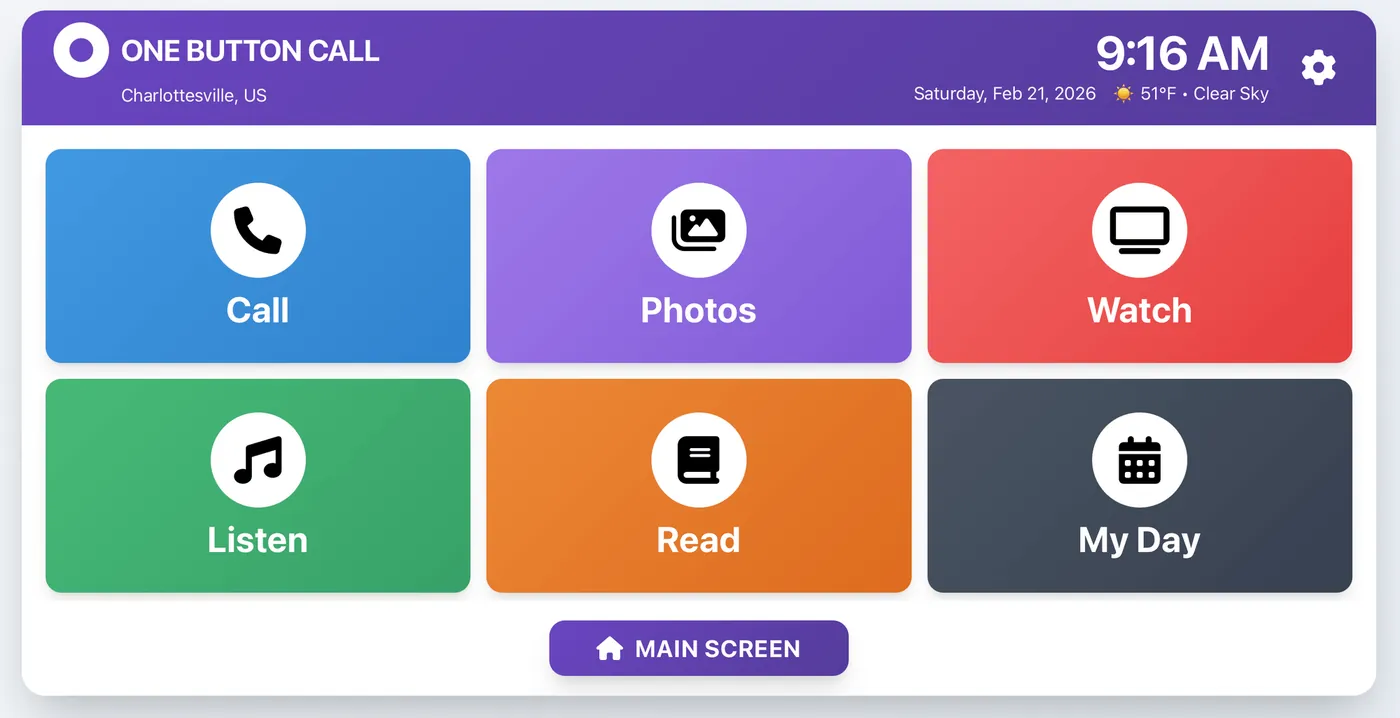
Six buttons. Two taps. That’s it.
No app store, no notifications, no settings to wander into. A big Main Screen button always brings them home. You can hide any button they don’t use and reorder the rest.
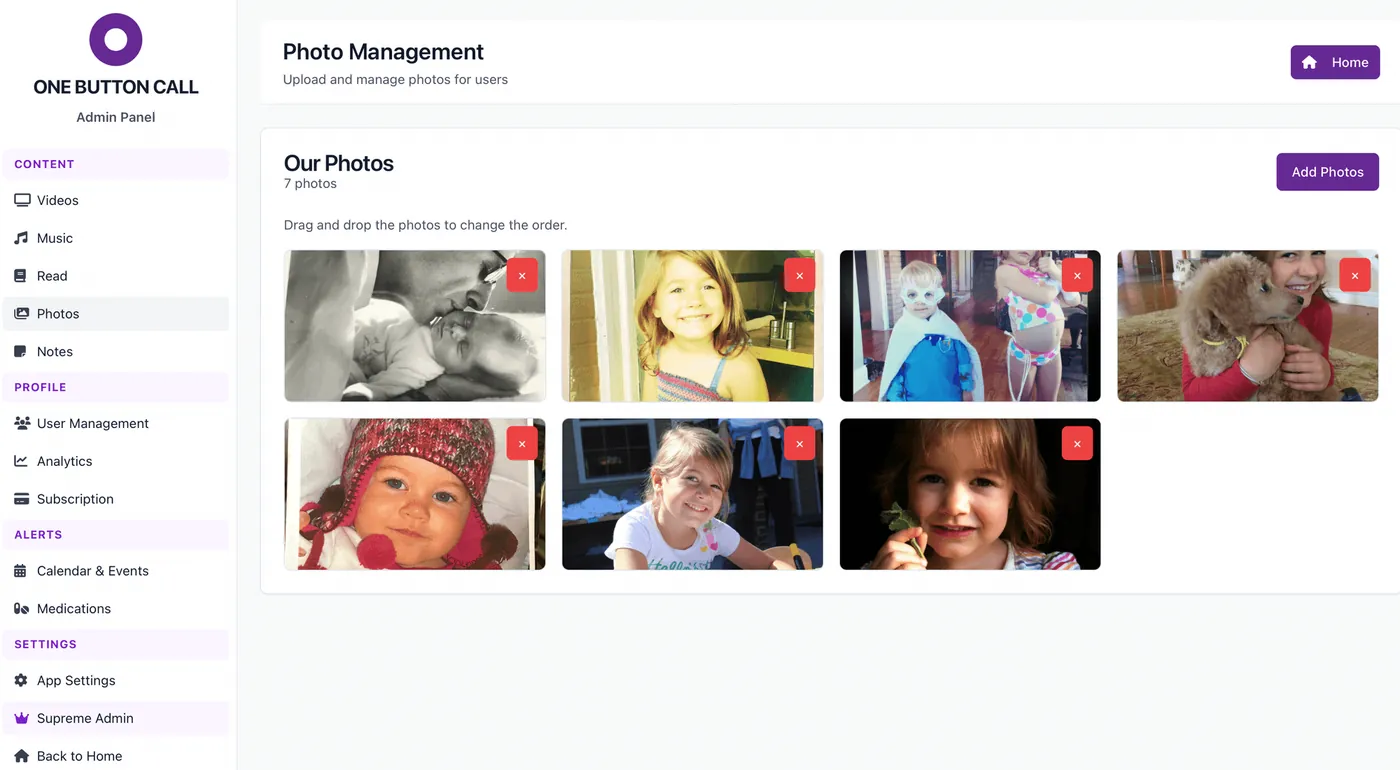
A dashboard everyone can share.
- Admins manage everything, including medications.
- Friends can call and add photos and videos, but can’t see medication details.
- Up to 10 family members per account.
- Usage reports show which features your parent enjoys.
Setup questions
How long does setup take?
About 20 minutes the first time. Most of that is turning on the tablet’s built-in kiosk mode, which our setup guide walks you through with screenshots.
Do I need to be in the same room as my parent?
Someone needs to hold the tablet once to sign in and lock it. That could be you, a sibling, a neighbor or a care community staff member. After that, everything happens remotely.
Can I undo kiosk mode later?
Yes. Kiosk mode is a standard setting on iPad, Android and Windows. Turn it off with your passcode and the tablet works normally again.
Hear their voice this week.
Start free for 30 days on the tablet you already have. If it isn’t right for your family, you’ve lost nothing.
Start your 30-day free trial →